BPS Pro Links
Buy BPS Pro
BPS Pro vs BPS Free Feature Comparison
Built-in Zip Install, Zip Backup & Zip Upgrade
Video Tutorials
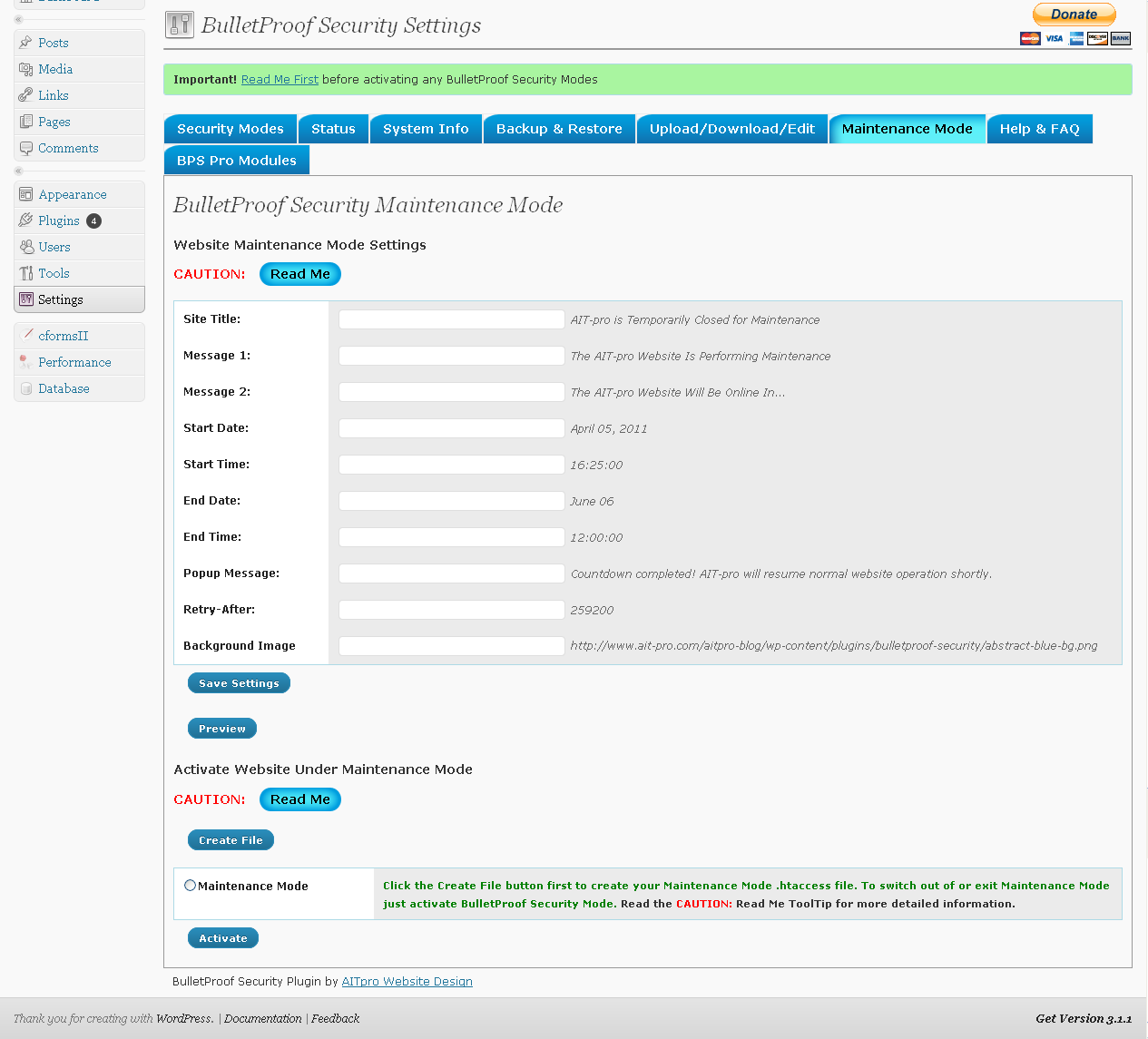
BPS Pro Screenshots
Questions, Comments & FAQ
General, Advanced and Host Specific php.ini Information
AutoMagic php.ini Handler Web Hosts List
Hover ToolTips Posted As Text For Language Translation (via Browser)
BPS Free Links
|
| BulletProof Website Security Contributors |
| BulletProof Security Donations Page |
| BulletProof Security Guide - BPS version .46.8 – .45.5 |
| BulletProof Security Screenshots – BPS .46.8 |
| BulletProof Security Setup Video Tutorial |
| BulletProof Security WordPress Plugin FAQ’s |
| BulletProof Security Comments, Questions, Problems & Wishlist |
| BulletProof Security .htaccess file modifications |
| BulletProof Security WordPress Plugin Download |
BPS .46.8 Specs
|
If you dig BPS please create a link back to AITpro. Thank you.The information below is outdated. Please see the BPS Guide. |
| *** Old Version Info *** – see the BPS Guide for current version info BulletProof Security Version .44.1 released 5/5/2010 now includes a backup and restore feature to backup and restore your original existing .htaccess files. Download your /htaccess folder if you have Version .44 installed before upgrading to Version .44.1 and upload it back to the BulletProof Security plugin folder after you have upgraded. |
| *** Old Verion Info *** – see the BPS Guide for current version info BEFORE activating any BulletProof Security modes look at your root path to your website’s WordPress installation shown within the BulletProof Security Options page under BulletProof .htaccess Security Modes (within the BulletProof Security Options page). If your WordPress installation is installed in your website domain root folder than you will see http://your-website-domain-name/.htaccess. If your WordPress installation is installed in a subfolder off of your website domain root than you will see something like this for example http://your-website-domain-name/a-folder-name/.htaccess. If your WordPress installation is in your website domain root you DO NOT need to modify anything and can just activate any BulletProof Security modes you want now. If your WordPress installation is in a subfolder of your website domain root then read the IMPORTANT!!! info shown below. *** Old Version Info *** – see the BPS Guide for current version info If your WordPress installation is in a subfolder then DO NOT activate any of the BulletProof Security Modes until have fully read the help files and read the BulletProof Security Screenshots page (applies to versions .44 and .44.1) BEFORE activating any BulletProof Security modes. Setting up BulletProof Security to work correctly for your website if you have WordPress installed in a subfolder off of your root website domain WILL require a one time manual editing of the 3 .htaccess files that are provided with the BulletProof plugin. You will need to add the path to your particular folder where WordPress is installed on your website domain. Those 3 .htaccess files are located in the /plugins/bulletproof-security/htaccess/ folder. The files are named: default.htaccess, secure.htaccess and maintenance.htaccess. Download the 3 files to your computer add the path to your WordPress installation folder in all of the provided .htaccess files and then upload them back to the /plugins/bulletproof-security/htaccess/ folder. If WordPress is installed in your website domain root folder on your website then you DO NOT need to make any modifications to any of the BulletProof .htaccess files. |
BulletProof Security WordPress Plugin FAQ’s |
| If you do not see the answer to your question posted here, then please post your question on the Comments, Questions, Problems & Wishlist page. We will answer your question there and then also post those questions and answers here if appropriate. |
What does the BulletProof Security WordPress Plugin Do? |
| The BulletProof Security Plugin is a secure radio button form with options that you select for what level of .htaccess security you want for your root and /wp-admin folders. You can switch between (enable) all available modes – default .htacces security, bulletproof .htaccess security and maintenance modes in less than 5 seconds – ALL from within your WordPress Dashboard – No need to access your website via FTP or from your web host Control Panel to do anything more. For more information read the BulletProof Security Plugin Overview or take a look at the BulletProof Security screenshots page.(applies to versions .44 and .44.1) |
My Website Has Already Been Hacked – Can BulletProof Security Help? |
| Yes, but only by allowing you to put your website in Maintenance Mode. This will take your website offline until you can restore your website from backup or manually repair your website. This will prevent other people from getting a “virus” from your website and also block the hackers from accessing your website until it is fully restored / repaired. I recommend restoring your website from backup if you are not an experienced coder. The more sophisticated hackers and hacking programs are designed to do multiple things and leave multiple backdoors. Repairing your website could take much longer than just restoring your website from backup. Once your website is fully restored from backup you will have to immediately reinstall BPS and either reactivate Maintenance Mode or activate BulletProof Security Modes right away to block all future hacking attempts or your other option is to use the BPS master .htaccess master files manually via FTP during the process of restoring your website. For example if you do a complete restore of your entire website from backup then BPS will not exist on that backup. If it did your website never could have been hacked in the first place from an XSS or SQL hacking method. The exact second that your website is restored you would upload the BPS master .htaccess file via FTP to your website root folder. You will need to rename whichever master .htaccess file you chose to manually upload to your website folder. If you choose secure.htaccess rename it to .htaccess and upload to your root folder. If you choose maintenance.htaccess rename it to .htaccess and upload to your root folder. You will also need to upload the bp-maintenance.php file to your root folder. |
How do I change or remove the admin user account? |
| The simplest way to do this is to just create a new administrator account under the WP Users panel > Add New. Make sure that when you create your new unique administrator account name you give this new Administrator account Administrator rights. This is called Role in WP and the setting is located right above the Add User button at the bottom of the Add New User page.Then log out of your WP Dashboard, log back in with the new Administrator account you just created and then delete the WP default “admin” administrator account. |
Are there any known conflicts with BulletProof Security and other WordPress Plugins? Ozh’ Admin Drop Down Menu Plugin Fix |
| BulletProof Security has been tested with over 1000 WordPress plugins and one conflict has been found with the Ozh’ Admin Drop Down Menu plugin. The fix is quick and simple. FTP to your website, download the BPS default.htaccess file from the /wp-content/plugins/bulletproof-security/htaccess folder, then upload the default.htaccess master file to the /plugins/ozh-admin-drop-down-menu/ folder and rename default.htaccess to just .htaccess. |
How to install the BulletProof Security WordPress Plugin? |
| *New BPS Version .45.2 Guide link above* You can download and install the BulletProof Security WordPress plugin from the WordPress Plugin Directory and of course directly from within your WordPress Dashboard by using the “Add New” option under your WordPress Plugins Panel.If you are downloading the zip file from the WordPress Plugin Directory Download the bulletproof-security.zip file to your computer and unzip it. Upload the bulletproof-security folder (including all files within) to your /wp-content/plugins folder. Activate the BulletProof Security plugin. Activating BulletProof Security DOES NOT enable any of the BulletProof Security modes. To enable any of the BulletProof Security modes you will need to go to your Settings Panel in your WordPress Dashboard and click on BulletProof Security to go to the BulletProof Security Options page. Before activating any of the BulletProof Security modes read the information below. You will need to add the path to your WordPress installation (folder name) to the 3 .htaccess files provided with BulletProof Security (located in the bulletproof-security/htaccess folder) ONLY if your WordPress installation is NOT installed in your website domain root folder (ie if WordPress is installed in a subfolder named something like /blog for example). If your WordPress installation is in your website domain root folder than you DO NOT need to edit anything to start using BulletProof Security. Enjoy! |
I already have an existing .htaccess file created for my WordPress website. Can I use my custom .htaccess file instead of using the BulletProof Security .htaccess files included with the plugin? |
| Yes. Of course. The secure.htaccess BulletProof file contains .htaccess code that protects your website against XSS (Cross Site Scripting) and SQL Injection hacking attacks. View a screenshot of the BulletProof Security secure.htaccess file. (applies to versions .44 and .44.1) Add your own additional .htaccess code to the Master .htaccess files to make them even more BulletProof to hackers or replace the provided BulletProof Security .htaccess master files with your own personal .htaccess security files. The primary function of BulletProof Security plugin is to act as a .htaccess file handler from within the WordPress Dashboard.The WordPress core app is already very secure, but if by some chance custom coding or “dirty” code is added to your website you could have a vulnerability that can be exploited. When your website is in BulletProof Secure Mode it does not matter if you have “dirty” code somewhere on your website because it cannot be exploited if the BulletProof secure .htaccess file is enabled. |
Does the BulletProof Plugin create or write the .htaccess files? |
| No. The .htaccess files have already been created so you can just add more code to them or create completely new .htaccess master files if you want. BulletProof is designed to handle copying, renaming and moving the .htaccess files. BulletProof Security Pro (release date TBA) does perform file writing as well as some other additional advanced functions. |
Is the BulletProof Security WordPress Plugin Secure? |
| Yes. Of course. |
Does BulletProof Security Block or Prevent any WordPress Website Administrator Functions? Widget Configurations? Deleting Plugins? |
| If your web host is still using PHP4 instead of PHP5 you will experience several different problems. If you are unable to perform Widget Configurations or delete plugins including BPS or the Status window displays NULL instead of the correct activated BPS .htaccess files then please see the BPS .45.2 guide for the solution. |
If I deactivate the BulletProof Security plugin are my original .htaccess files restored? |
| No. You need to restore them using the restore feature in BPS or manually from your computer by uploading replacement .htaccess files via FTP. |
BPS .45 specific problem – I installed BPS .45 and the menus are broken and I am getting all kinds of errors on the BulletProof Security Options Pages |
| Check if you are using PHP 4 on your website. You can check this from within BPS .45. If your version of PHP starts with 4 instead of PHP 5 then you can remove or recode BPS .45 to work for PHP 4 if you want. PHP 4 is about due to be completely phased out so there is no point in doing the extra coding work to make BPS .45 compatible with PHP 4. BPS .45 will function with PHP4, but it does not look visually correct and you will be missing many of the available features. Your host should provide you with the option of using PHP4 or PHP5. Obviously I recommend using PHP5. |
I Still Need to Use PHP4 for My WordPress Website |
Coding Modifications to make BPS .45.2 work with PHP 4 |
PHP4 problem in BPS .44 and .44.1 – File_get_contents function error |
| Error message displayed under Current Active BulletProof .htaccess FilesWarning: file_get_contents() expects at most 2 parameters, 5 given in /home/content/xxx/xxx/xxx/ezdrycarpet/html/ezb/wp-content/plugins/bulletproof-security/bulletproof-security.php on line 173 |
| There is a similar error message with BPS .45 due to using PHP 4 instead of PHP 5. Your Web Hosting account is running an older version of PHP – PHP 4. If you have the option to choose whether you want to run PHP 4 or PHP 5 then just choose to run PHP 5 from your Web Host Control Panel. If you need to run PHP 4 and cannot use PHP 5 then you will have to either ignore the error message or modify the bulletprooof-secure,php file code as shown below. I will not be adding backwards compatible PHP 4 coding to BP for this one particular known issue with the file_get_contents function. |
| existing code line >>> file_get_contents(ABSPATH . $filename, NULL, NULL, 3, 44); |
| modified code line to work for PHP4 >>> file_get_contents(ABSPATH . $filename); |
| Unfortunately, this means that the entire contents of whatever .htaccess file is activated will be dispayed insted of just the first 44 characters of the .htaccess files. This is a PHP 4 thing so I will not be addressing it in this one particular case. |
PHP4 problem in BPS .44 and .44.1 – fileperms function stat failed for error |
| Error message displayed under File and Folder PermissionsWarning: fileperms(): Stat failed for ../wp-admin/.htaccess (errno=2 – No such file or directory) in /home/content/sss/sss/sss/ezdrycarpet/html/ezb/wp-content/plugins/bulletproof-security/bulletproof-security.php on line 298 |
| This similar error has been corrected in BPS .45 by suppressing the clearstatcache PHP error. Error checking is now controlled by other functions that output customized specific warning messages. If you are still using an older version of BPS (.44 or.44.1) you can edit the bulletproof-security.php file and suppress the clearstatcache function by adding an @ symbol – do a search for the clearstatcache function and put an @ symbol in front of the clearstatcache function. Like this @clearstatcache. |